

Getting Started with Atmos
Last updated:
Unboxing & Installation
Section titled “Unboxing & Installation”In the box, you’ll find:
- Glass Globe
- Lamp Base
- USB-PD Power Adapter
2 m / 6.7 ft USB-C Cable
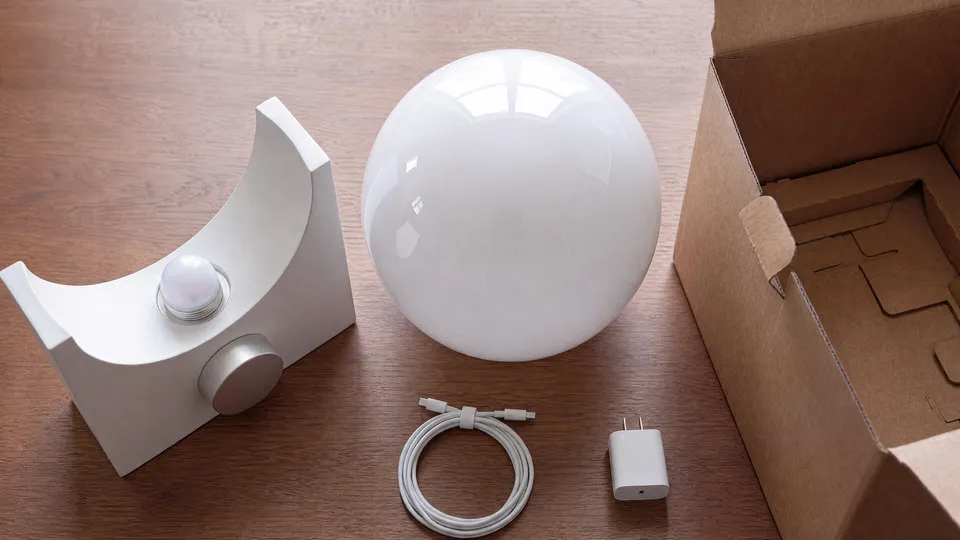
To install the lamp:
-
Place the Lamp Base on a flat surface. Align the threads and gently rotate the Glass Globe clockwise until you feel light resistance.
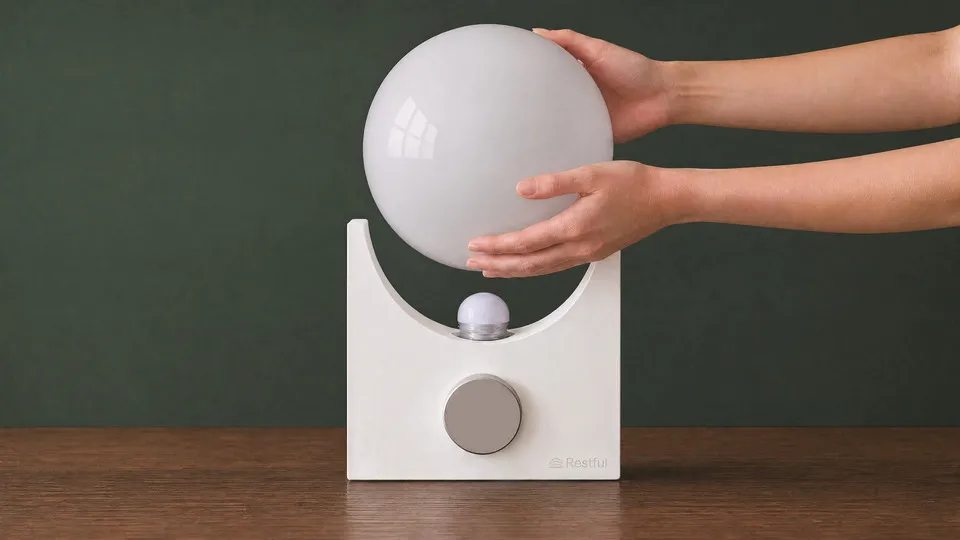
-
Plug the USB-C Cable into the USB-PD Power Adapter. Then plug the USB-PD Power Adapter into the wall and the USB-C Cable into the Lamp Base.
Using the Lamp
Section titled “Using the Lamp”Right away, you’ll be able to use the fundamental features of the lamp:
- Turn the lamp on and off by pressing the Dial.
- Adjust the brightness by rotating the Dial clockwise and counterclockwise.
- Rotate the Dial clockwise from off to turn the lamp on to its lowest brightness. This is useful for nighttime wake-ups, when you want only a small amount of light.
- Rotate the Dial counterclockwise to dim. Continue past the lowest brightness to turn the lamp off.
Atmos is pre-programmed to the time zone associated with your shipping address. It automatically shifts brightness and warmth throughout the day and learns your adjustments to match your preferences over time.
Additional functionality can be unlocked by pairing the lamp with the MyRestful App:
- Changing the time zone
- Setting BrightStart schedules (gentle sunrise simulation as an alternative to an alarm clock)
- Controlling the lamp remotely from anywhere
- Receiving automatic software updates to enhance the performance and functionality of the lamp
- Learn more about upcoming features in the Atmos Roadmap
- See the Atmos Changelog for recent improvements
Connecting the App
Section titled “Connecting the App”The MyRestful App enables all the functionality of Atmos Bedside Lamp, as well as software updates.
Download the MyRestful App on the App Store (iOS, iPadOS) or Google Play (Android):




Open the app, and create an account. Then click Add a Lamp.
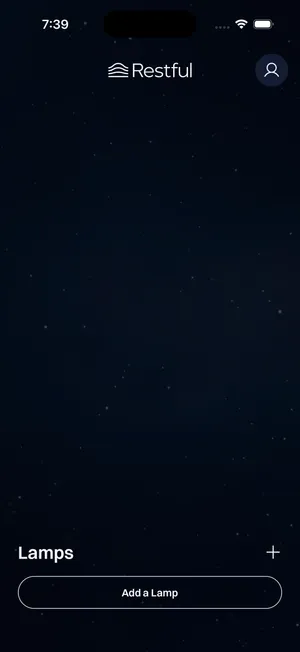
Follow the instructions to enable permissions, put the lamp into pairing mode, select the lamp, add Wi-Fi credentials, and specify the name and time zone.
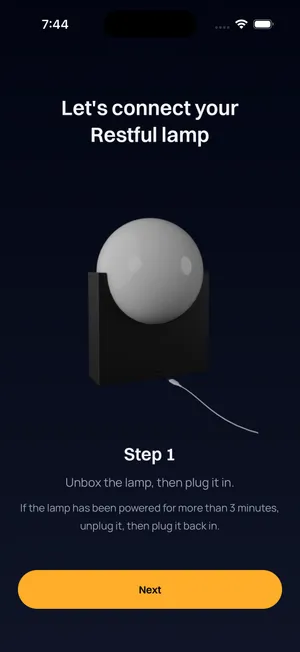
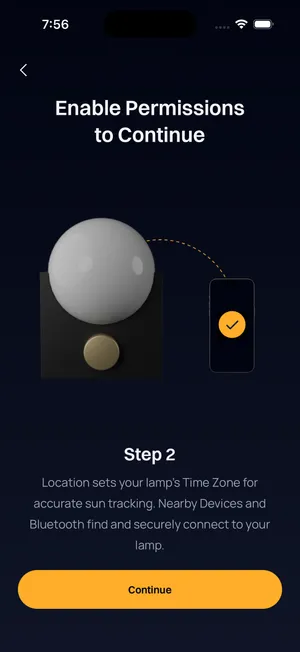
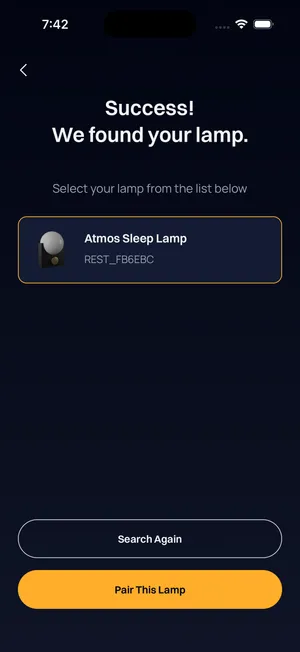
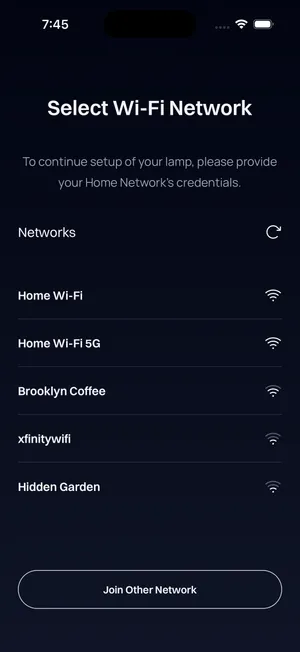
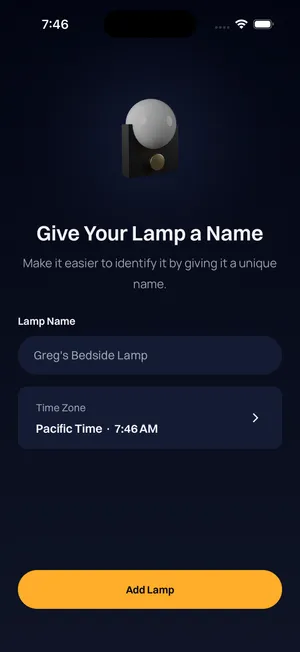
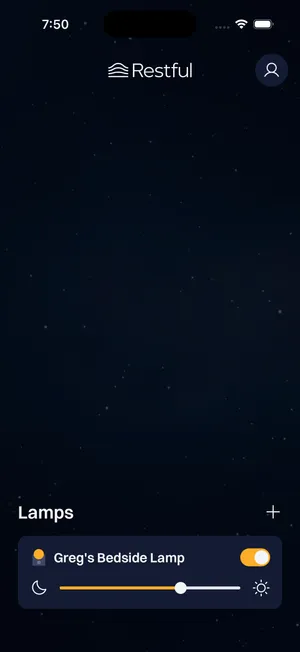
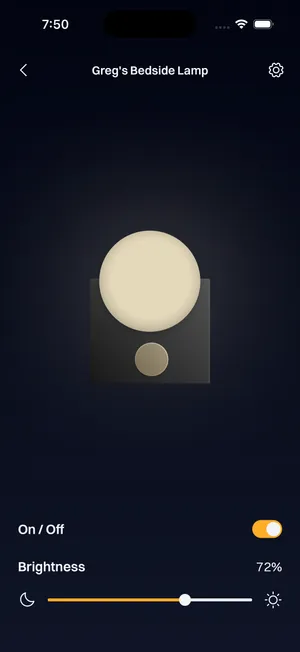
After successfully connecting, the lamp will appear on the MyRestful App home screen. You can adjust the brightness and toggle it on and off from the home screen, or press the lamp to reveal the full device page.
Next Steps
Section titled “Next Steps”Need more help? Visit support.restfullighting.com for additional guides, including BrightStart scheduling and troubleshooting.
Any issues? Email us: hello@restfullighting.com